Kilo Code - VSCode
This page gives you elements to configure Kilo Code in VSCode to use IG1 AI models through your Dedicated Gateway.
Install Kilo code plugin
The current Kilo Code extension is built on the Kilo CLI and is distributed as the pre-release version on the VS Code Marketplace.
- Open VS Code
- Go to Extensions (Ctrl+Shift+X / Cmd+Shift+X)
- Search for "Kilo Code" 4 Click the dropdown arrow next to Install and select Install Pre-Release Version
Setup Model Provider
By Default, Kilo code propose to use their own API gateway Kilo Gateway.
To use IG1 AI as model provider follow these instructions.
Step 1: Open Kilo Code
Click the Kilo Code icon in the VS Code Primary Side Bar to open the chat panel. If you don't see the icon, verify the extension is installed.
Step 2: Add IG1 AI as provider
Open Kilo Code Settings by clicking on the gear icon in the kilo code chat.
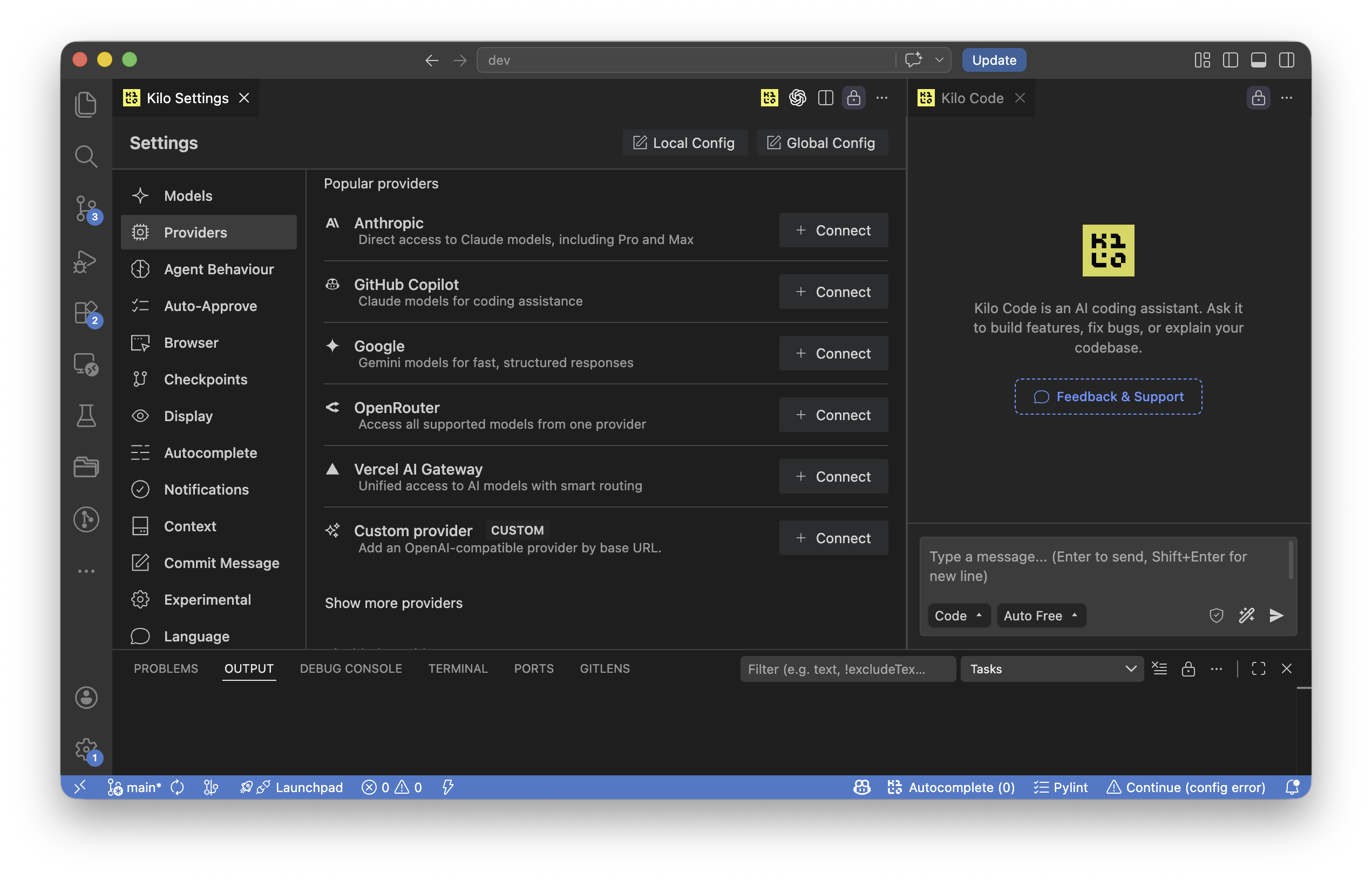
Then goes to Providers and scroll down until Custom provider. Click + Connect.
Then set:
- Provider ID: Example
ig1-ai, - Display Name: Example
IG1 AI, - Base URL: Set here your dedicated gateway URL (e.g.
https://api.xxx.ig1.ai), - API key: Set the API key received from your Dedicated Gateway admin
All models available are listed. Minimum required models are:
- GLM 5.3 Flash Agent
- Coding Pro Thinking
You can also manually configure these models by setting their ID and Names.
Step 3: Configure Kilo code models
In Kilo Code Settings, select Models
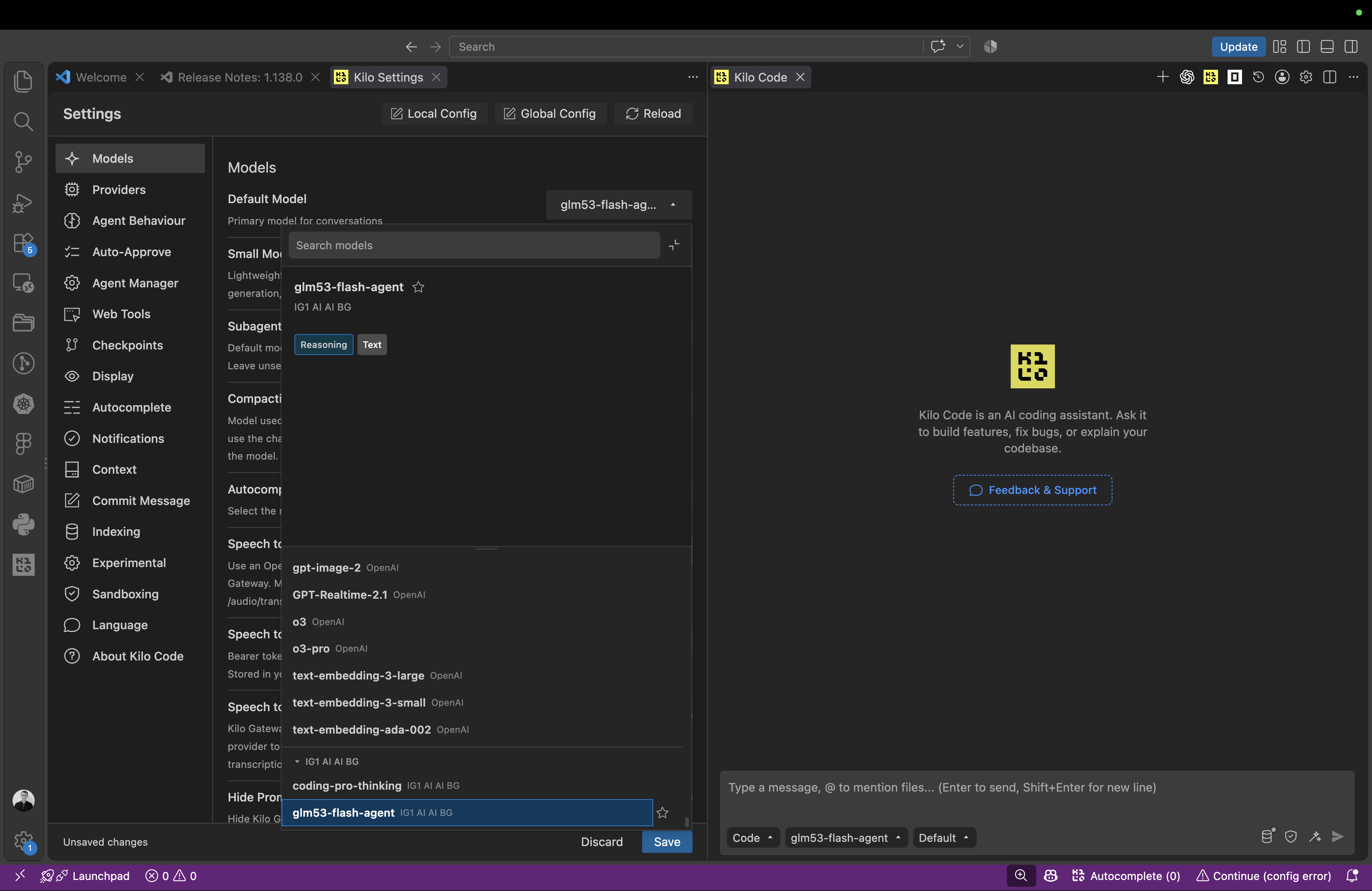
Then set
- Default Model: Scroll down until IG1 AI
GLM 5.3 Flash Agent - Small Model: Scroll down until IG1 AI
Coding Pro Thinking
Step 4: Test your setup
Go to the Kilo Kode Chat
Check the model use for Codeis IG1 AI / GLM 5.3 Flash Agent
Type a message.