Getting Started
New to the Chat App? This guide will get you logged in and ready to chat.
Before You Begin
Make sure you have:
- A web browser (Chrome, Safari, Edge, or Firefox — any modern browser works)
- Your work email (the same login you use for your company email)
- The Chat App URL provided by your organization
Your organization's URL follows this format:
https://chat.XXX.ig1.ai
Where XXX is your organization trigram provided by the IG1 team.
Bookmark the Chat App URL for quick access. You can also add it to your phone's home screen for one-tap opening.
Step 1: Sign In
When you open the Chat App, you are automatically redirected to your organization's login screen.
Click Sign In with Your Organization and enter your work credentials. You may log in via your organization's SSO provider (for example, Google Workspace, Microsoft Entra ID, or GitHub).
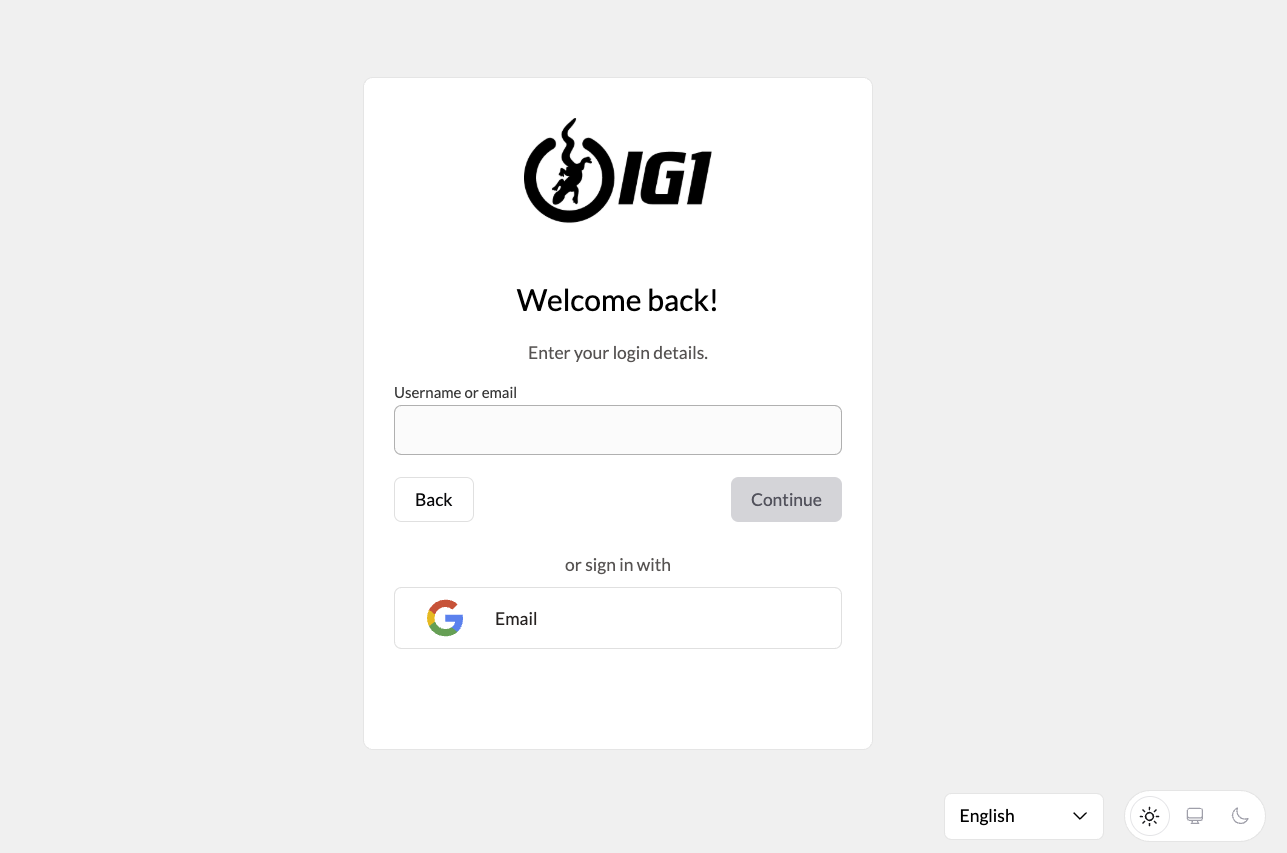
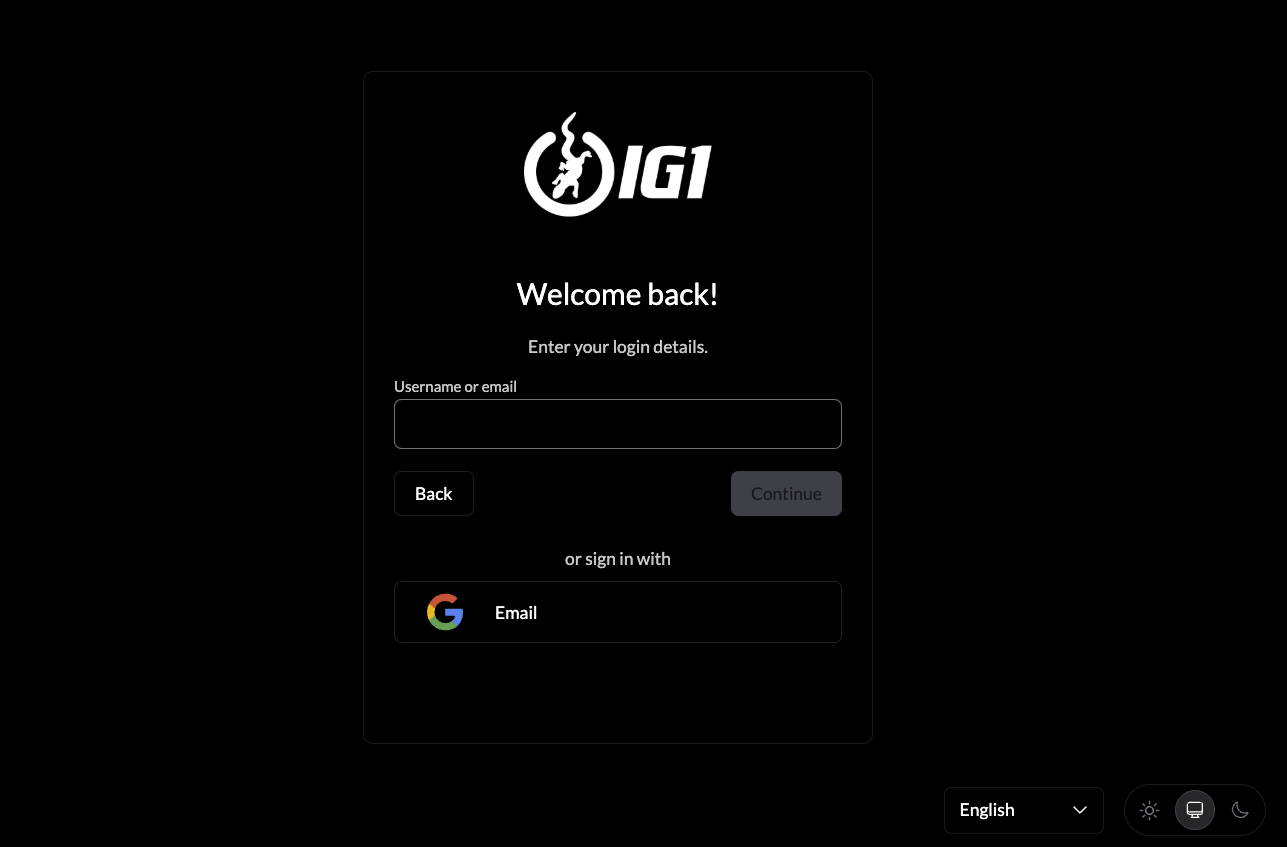
What this means: Most users log in via their company's existing SSO system (for example, Google Workspace, Microsoft Entra ID, or GitHub). You don't need to create a new password or remember anything extra.
If your account was created by an administrator, you will receive an email and a temporary password. Log in with those credentials and change your password when prompted.
If you can't log in or see an "Approval Required" message, your account might not be set up yet. Contact your organization's administrator for help.
Approval Required
If you log in successfully but your account lacks the required access, you will see an Approval Required page showing your signed-in email and a Sign Out button. Contact your administrator to request access.
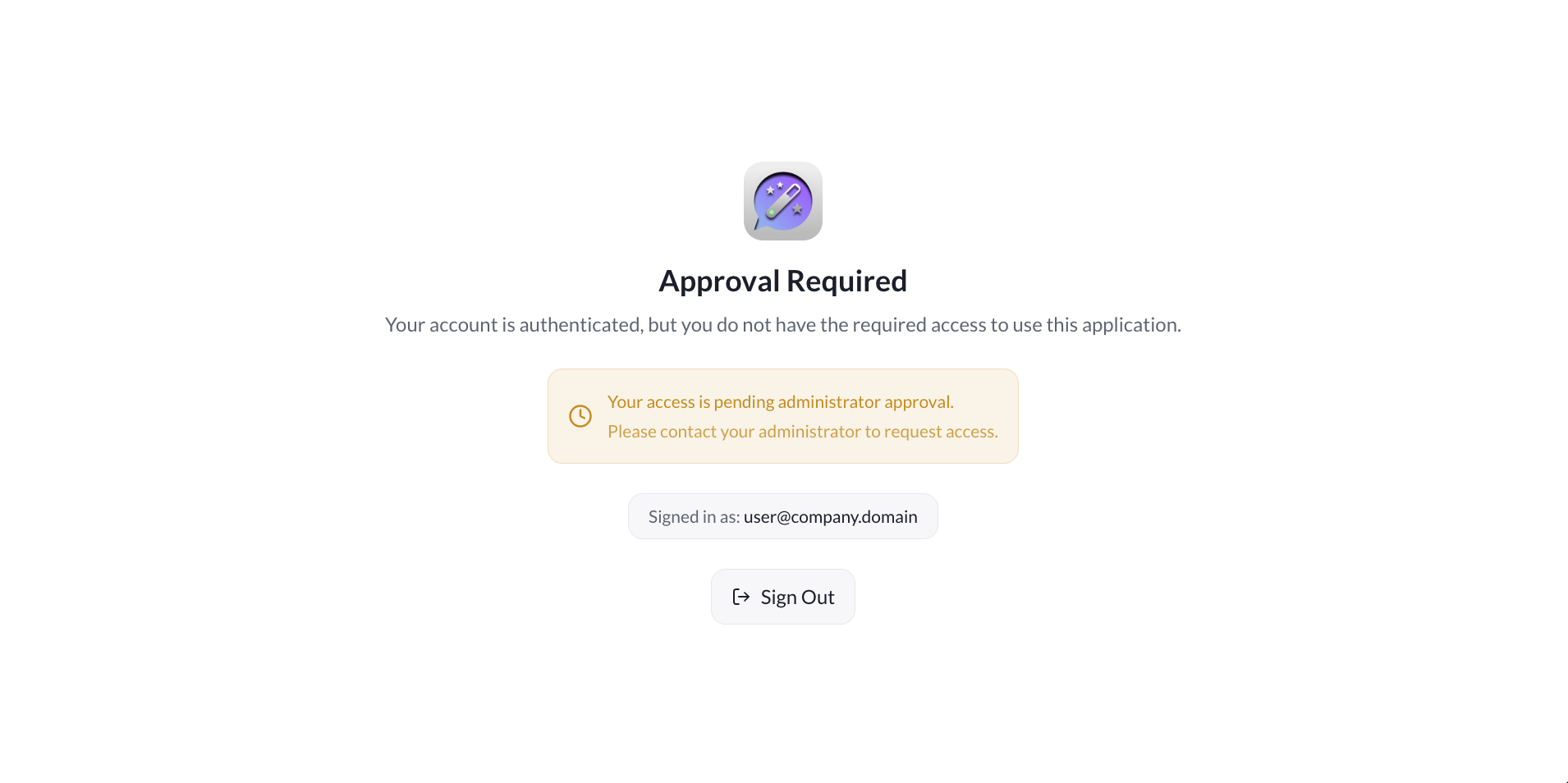
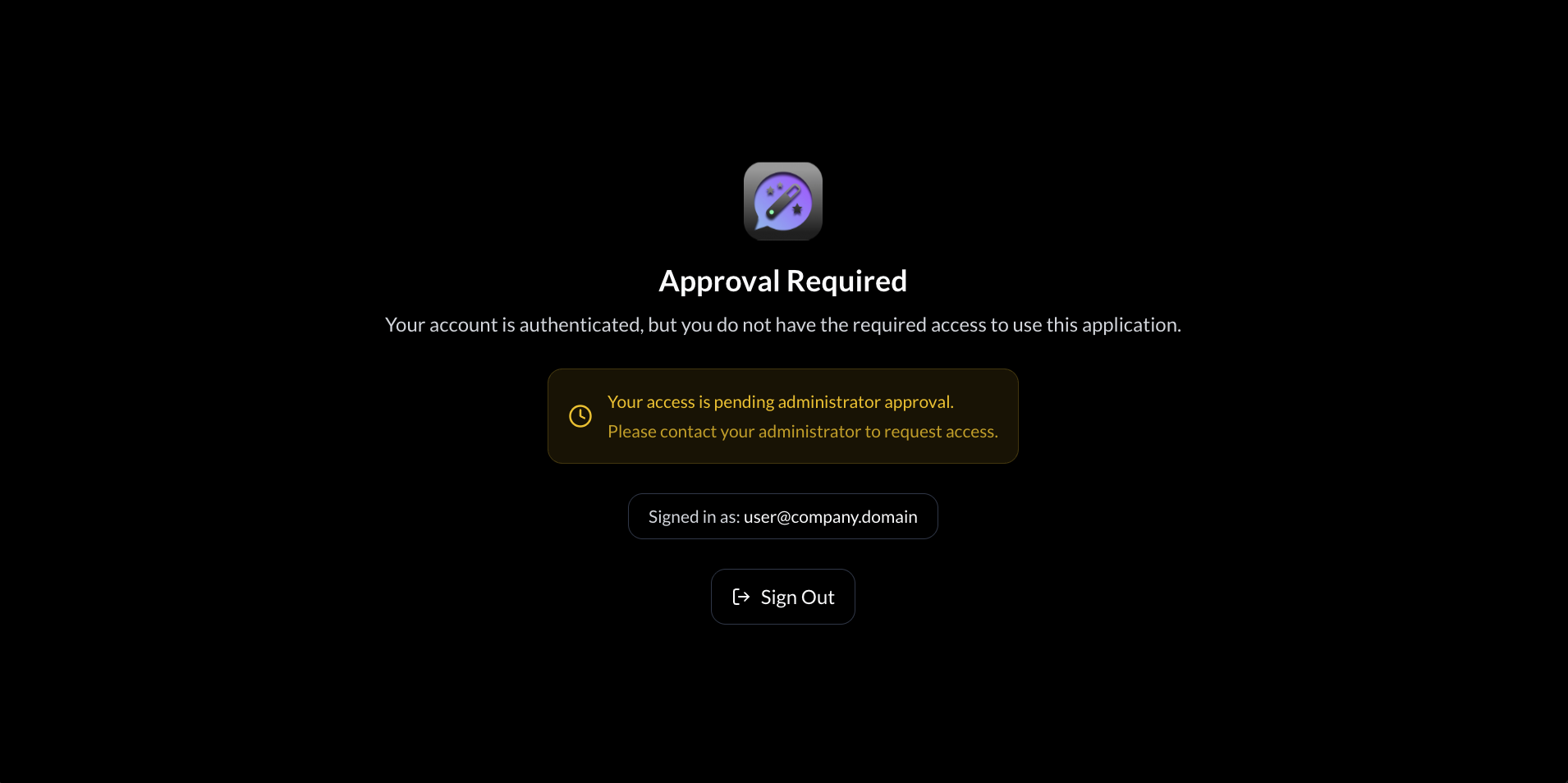
Your organization administrator controls access to the Chat App. If you cannot log in, contact your administrator to verify your account is provisioned.
If you log in successfully but see an Approval Required page, your account may not have the required permissions. Use the Sign Out button and contact your administrator.
What's Next?
You're all set! Here are some suggestions for where to go next:
- Conversations — Start chatting, send messages, and understand how responses work
- Your Sessions — Organize, rename, and find your sessions
- Features — Discover everything the AI can do, with examples
- Profile — Change your theme, language, and settings
The best way to learn is by doing. Don't be afraid to experiment — you can't break anything, and your conversations are private to you alone.