Your Sessions
Your conversation history is displayed in the sidebar on the left. Sessions are grouped by date so you can find them quickly.
How Sessions Are Organized
The sidebar groups your sessions by date:
- Today
- Yesterday
- Last Week
- Older
Click any session title to open it. You will pick up exactly where you left off, even on a different device.
Session Icons
| Icon | Meaning |
|---|---|
  Lock Lock | Private session — the AI does not recall insights from previous sessions |
| (no icon) | Memory session — the AI uses insights from past sessions to personalize responses |
Rename a Session
By default, the AI generates a session title based on your first message.
- Find the session in the sidebar
- Click the pencil icon next to the title (or double-click the title)
- Type a new name
- Press Enter to save, or Escape to cancel
tip
Give sessions clear names like "Q4 Budget Review" so you can find them quickly later.
Delete One Session
- Find the session in the sidebar
- Click the trash icon next to the title


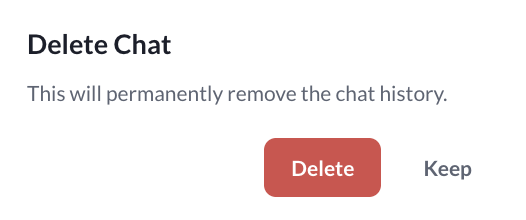
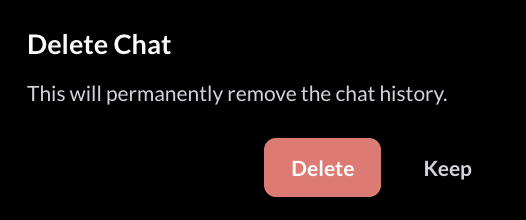
- Confirm by clicking Delete in the popup
warning
Deleting a session removes it permanently. It cannot be recovered.
Delete Multiple Sessions
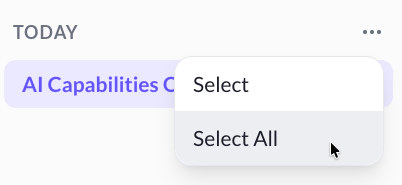
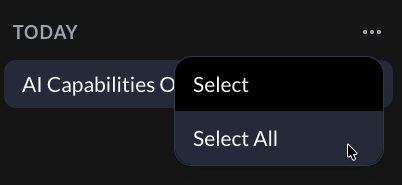
- Click the three dots menu next to a date group (such as "Today" or "Last Week")
- Click Select or Select All
- Check the boxes next to the sessions you want to remove
- Click the Delete button that appears
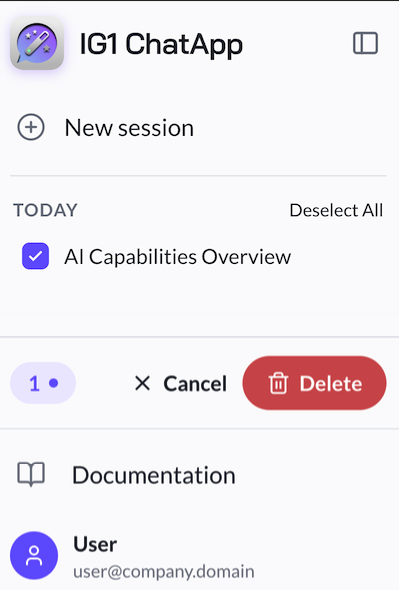
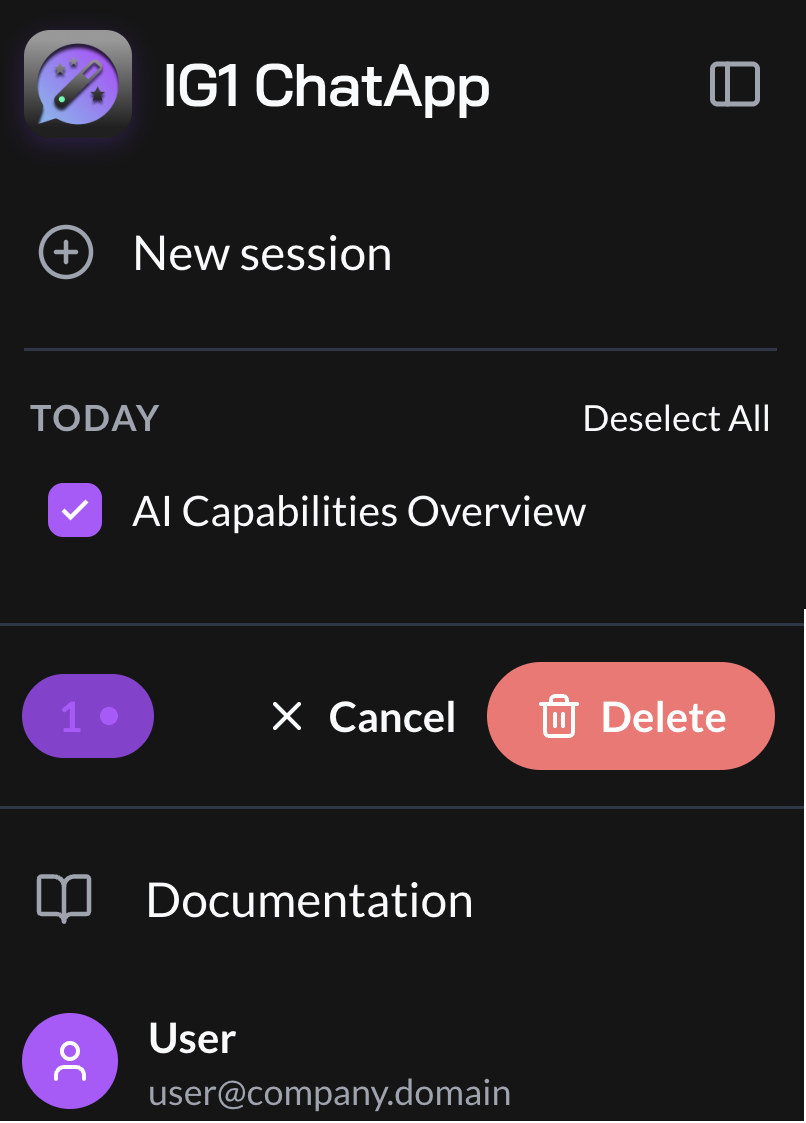
- Confirm in the popup
Quick Reference
| Action | How To |
|---|---|
| Start new session | Click New Session |
| Open a session | Click any session title |
| Rename a session | Click the pencil icon or double-click the title |
| Delete a session | Click the trash icon |
| Delete several sessions | Click three dots next to a date group, then Select |