Conversations
This guide covers everything you need to start and manage a conversation with the AI.
Start a New Session
Once you're logged in, you'll be redirected to a fresh New Session page. This is where every new conversation begins.
If you're already in an ongoing conversation and want to start a new one, look for the New Session button — it's usually in the sidebar on the left or at the top of the screen.
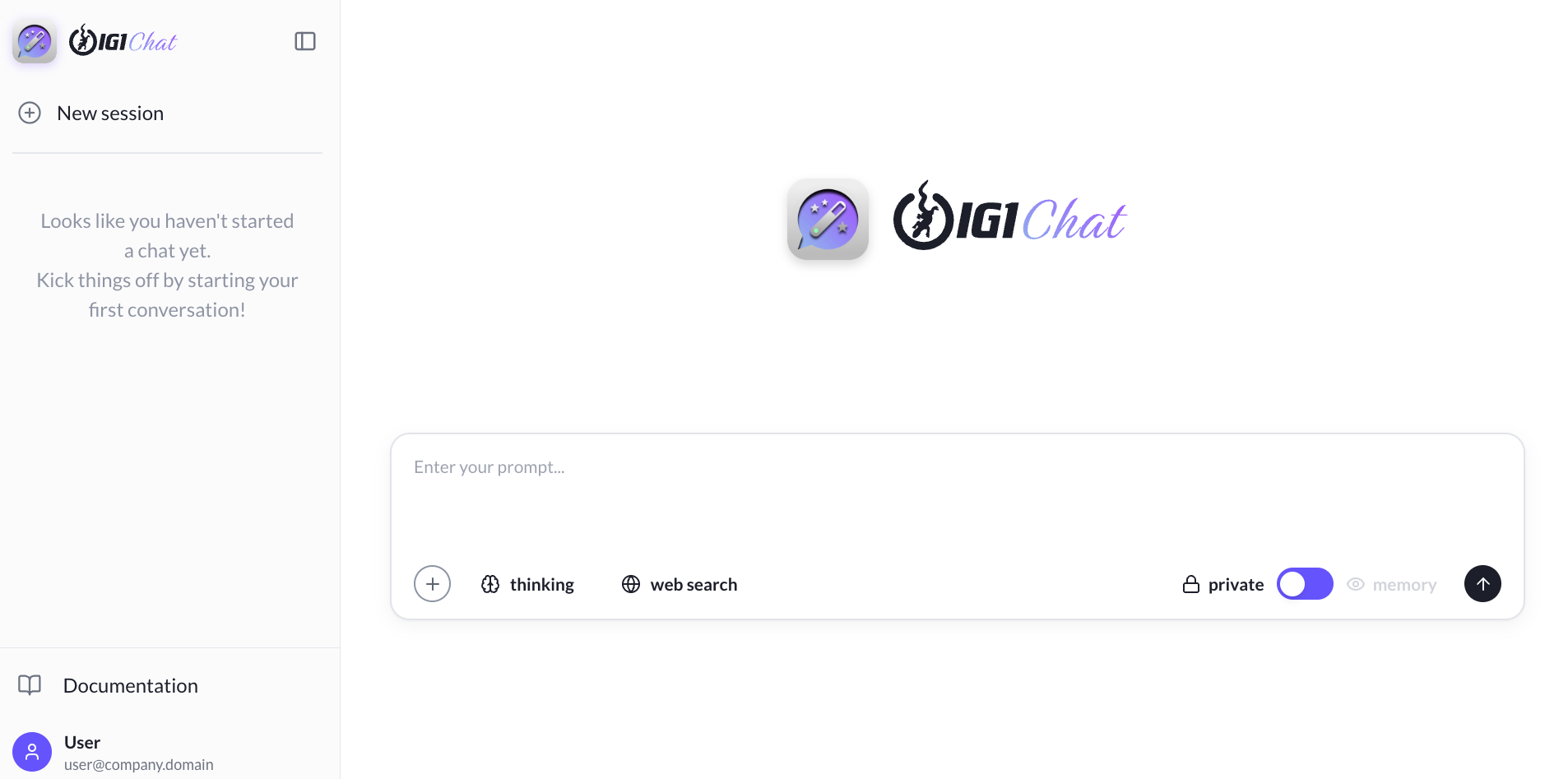
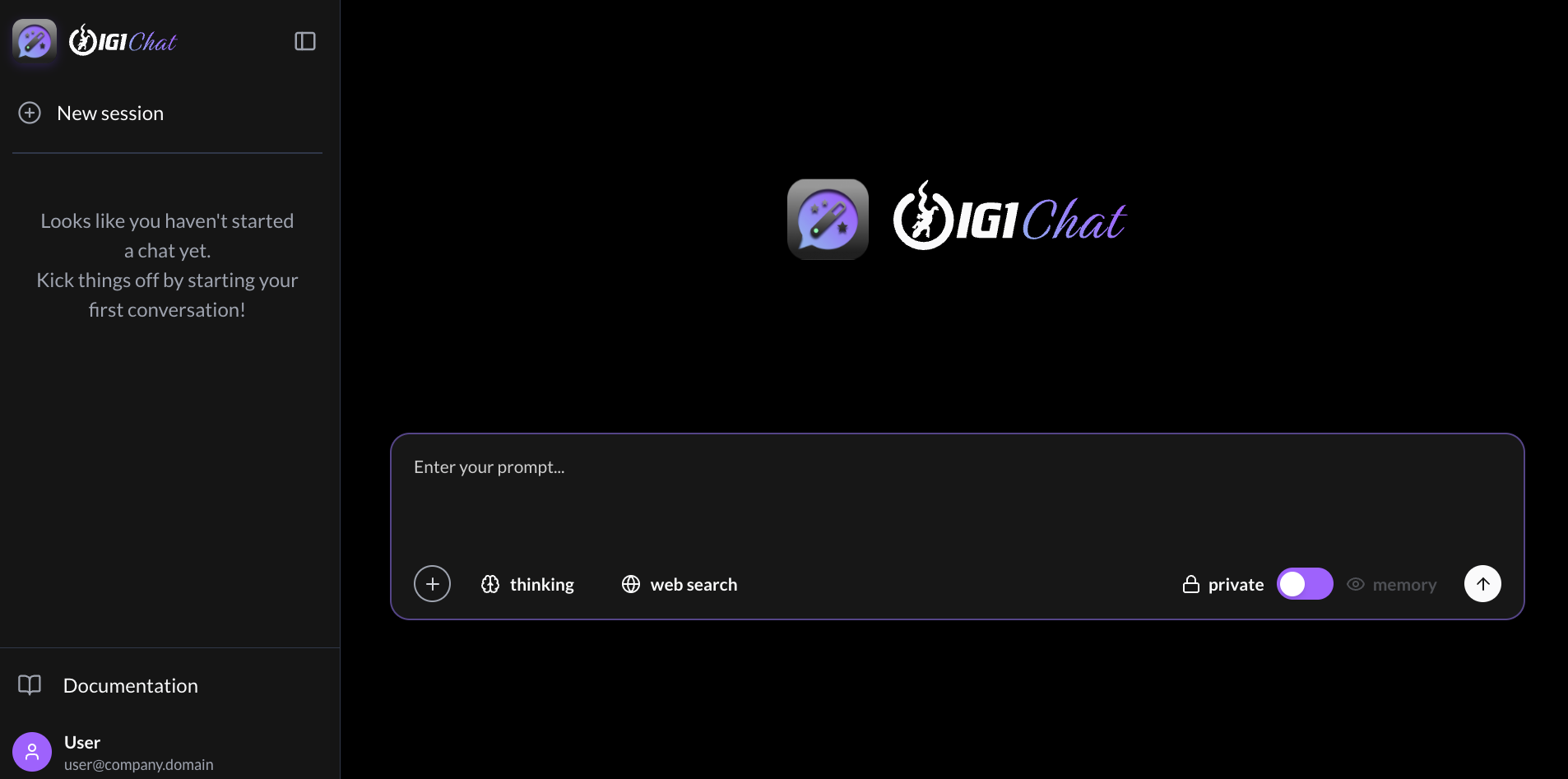
When you start a new session, you choose between Private Mode and Memory Mode. This determines whether the AI starts fresh or remembers context from your past conversations.
Private vs Memory Mode
| Private Mode | Memory Mode | |
|---|---|---|
| AI Knowledge | Starts fresh — nothing from previous sessions is recalled | Remembers insights from past conversations |
| Session History | Saved, but the AI doesn't use it for future answers | Saved and actively used to personalize responses |
| Best For | Sensitive topics, one-off questions, testing ideas | Ongoing projects, recurring topics, long-term work |
Your session history is saved in both modes. The difference is whether the AI can use what it learned from past conversations when answering new questions.
Tools to activate
Click the Thinking and Web Search buttons below the message box to activate or deactivate them.
- Thinking — Shows the AI's step-by-step reasoning before the final answer. Turn it off when you want a quick answer without the reasoning steps.
- Web Search — Searches the internet for current information. Turn it off when you want the AI to use only its built-in knowledge, and keep your data away from search engines.
Your settings are remembered across sessions.


Send Your First Message
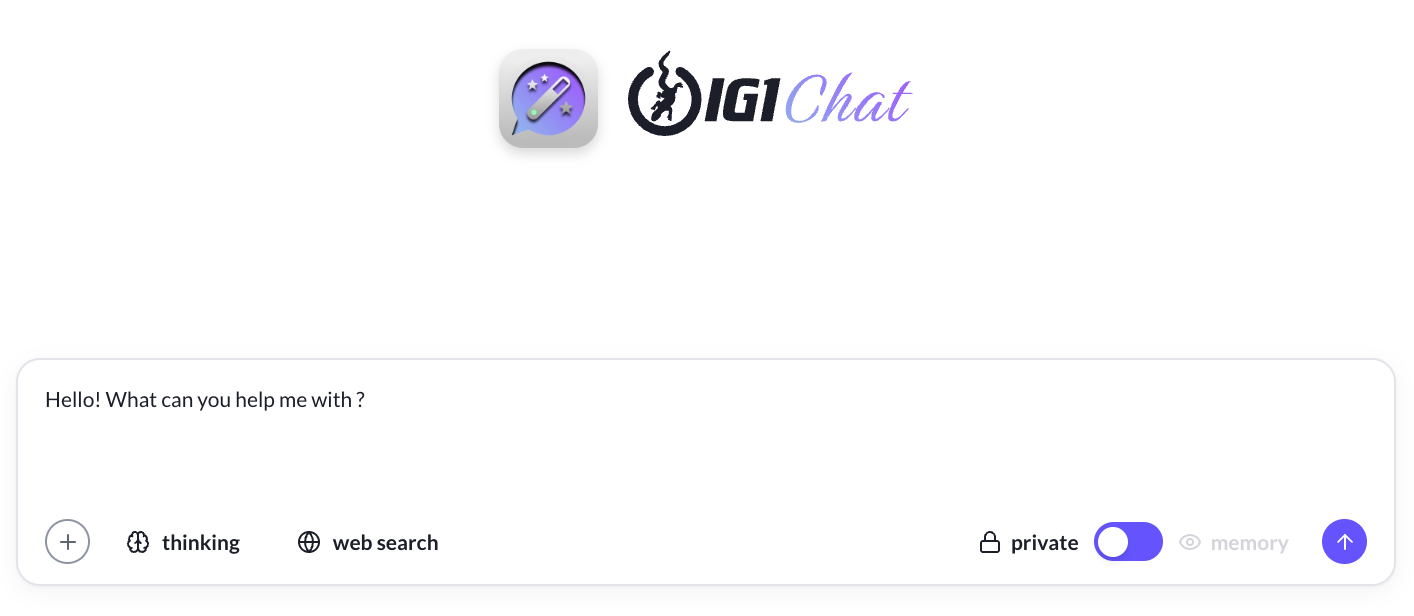
Click in the message box at the bottom of the screen, type a question, and press Enter.
Try one of these friendly starters:
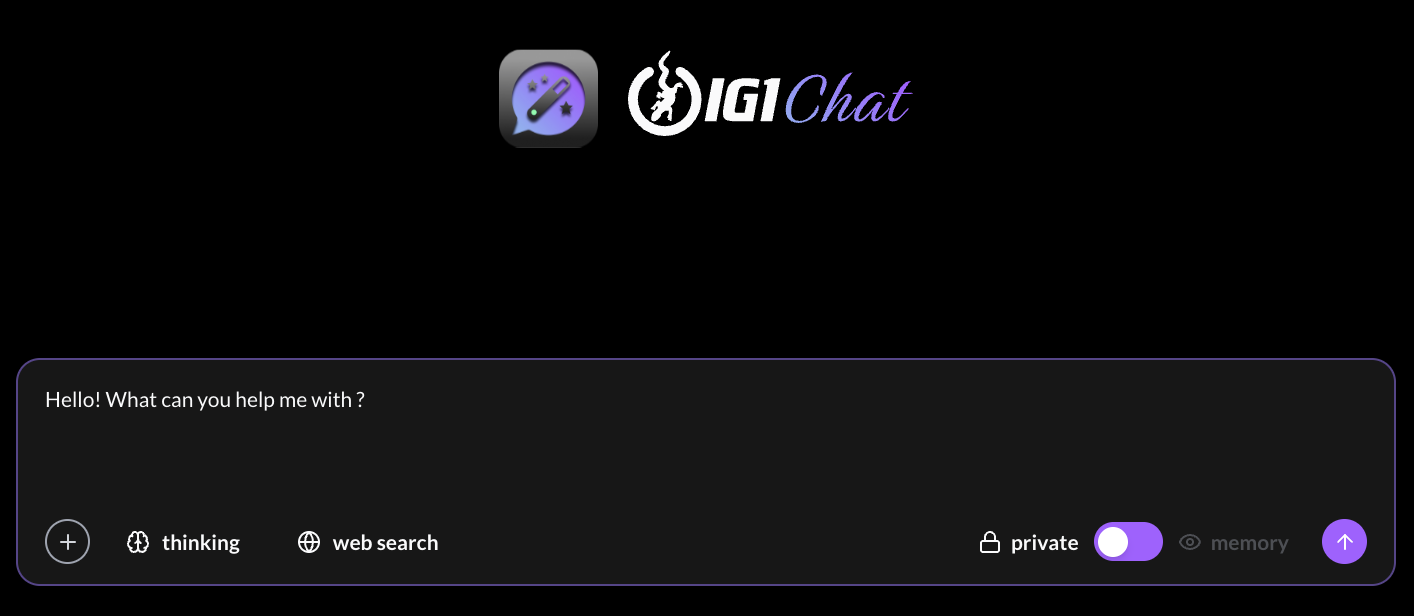
- "Hello! What can you help me with?"
- "What's the weather like in Paris today?"
- "Summarize the benefits of remote work"
- "Calculate 24 times 15"
The AI will respond in seconds. You'll see the answer appear word by word — this is normal! It's called streaming and means the response is being generated live.
Upload a File
You can attach files to your messages for the AI to analyze.
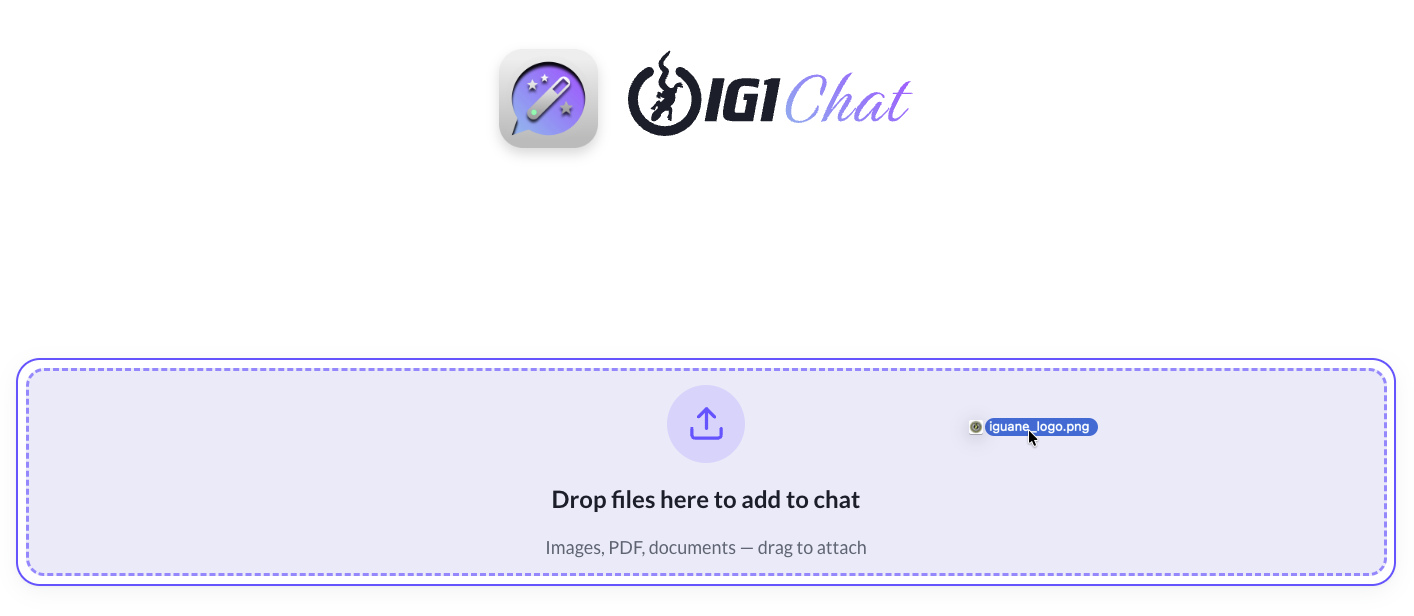
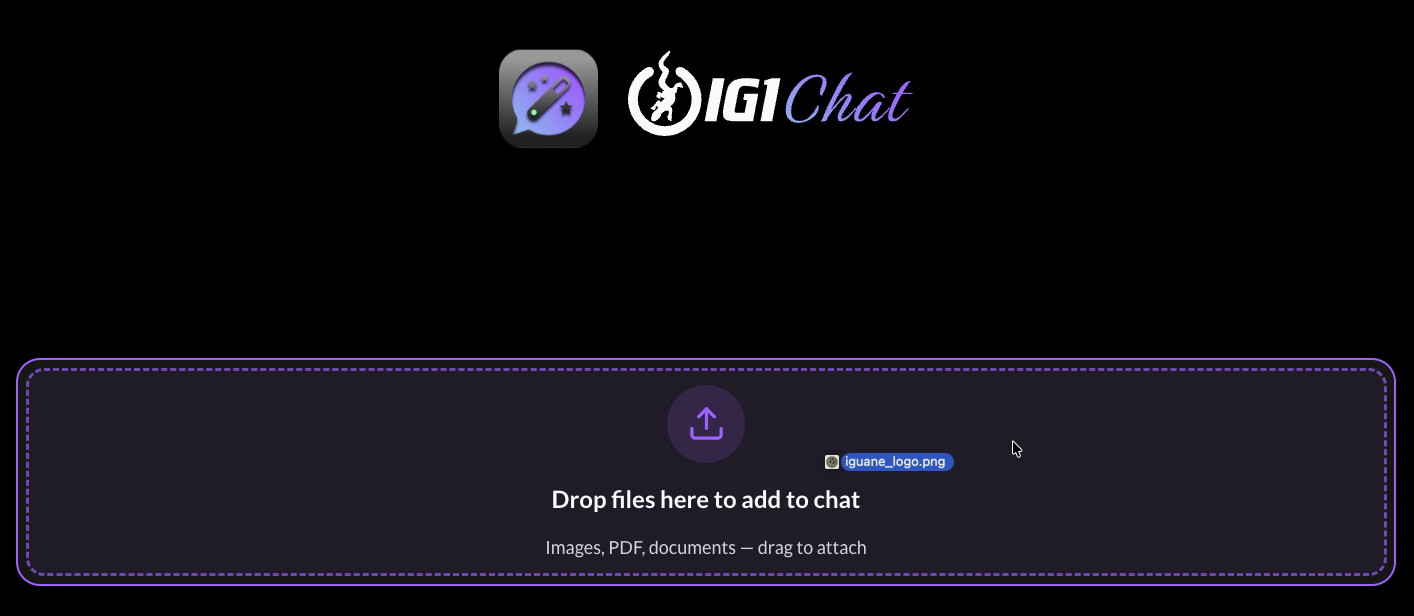
Look for the attachment icon next to the message box and click it. Select a PDF, Word document, or image from your computer. You can also drag and drop files or paste them from your clipboard.
Then type a question about the file, like:
- "What are the main points in this document?"
- "Summarize this report in three sentences"
- "What does this image show?"
Press Enter and watch the AI analyze your file!
Message Layout
- Your messages appear on the right side of the screen.
- AI responses appear on the left side of the screen, with a timestamp below each message (for example, "2:34 PM").
AI Response Details
Every AI response shows what happened behind the scenes before giving you the final answer.
Thinking Process
When the AI is reasoning through a complex question, a Thinking section appears at the top of the response. It is collapsed by default. Click it to expand and see the step-by-step reasoning.
This is most visible when Thinking Mode is turned on, but the AI may also show a brief reasoning step for some questions even when Thinking Mode is off.
Tools Used
If the AI used any tools (such as web search, image generation, or file analysis), an icon appears showing which tools were activated. This helps you understand how the answer was built.
Final Response
Below the thinking and tools section, you see the final answer in plain text. Every completed response has a copy button (clipboard icon). Click it to copy the full response to your clipboard.
Token Count
Below the final response, you may see a number showing how many tokens were used. This helps you understand the size of the response.
Generated Files and Images
If the AI created a file (document, spreadsheet, PDF) or an image during the response, it appears below the text. Click any file or image to preview or download it.
While the AI Is Responding
Words appear one at a time as the AI generates the response. This is called streaming.
- You can wait for the full response to finish.
- You can stop the response at any time by clicking the stop button (square icon) that appears in place of the send button while the AI is generating. The partial response is kept in the conversation.
- You can also start typing your next message at any time — it will be sent after the current response completes.
- If you leave the app or switch devices, the response continues in the background. You can check back later and see the complete answer.