Adding Users
As an administrator, you can add users individually or in bulk. Users you create receive an auto-generated password and have their Chat App access activated automatically.
Create a Single User
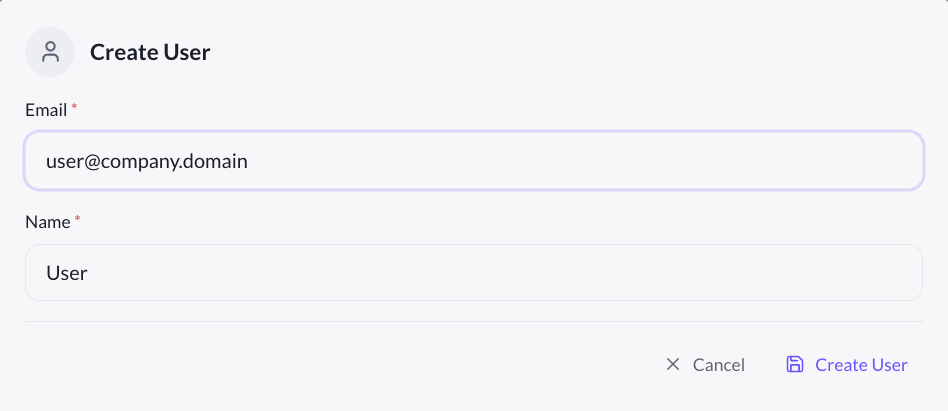
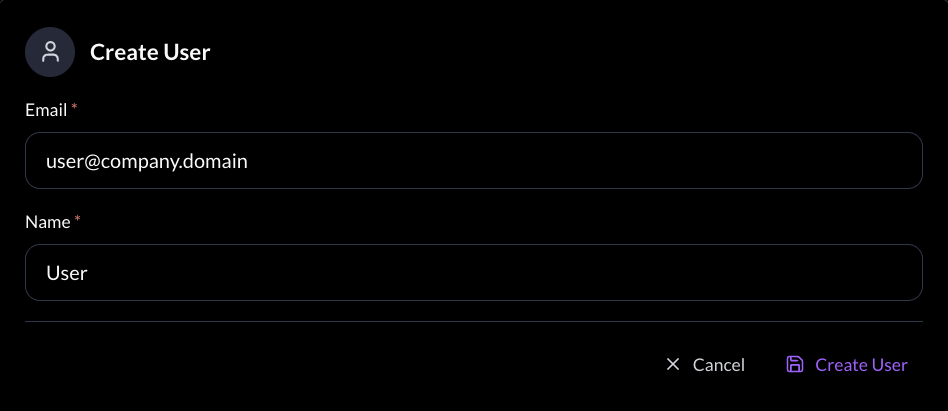
- Click Create User in the admin dashboard
- Enter the user's email and name
- The system creates the account immediately and generates a temporary password
- The new user appears in the confirmation list with their credentials
- Communicate the password to the user securely
Users created by an administrator automatically have their Chat App access activated and their email verification status set to active. They can log in and start chatting immediately.
Upload Users in Bulk
You can create multiple users at once by uploading a file:
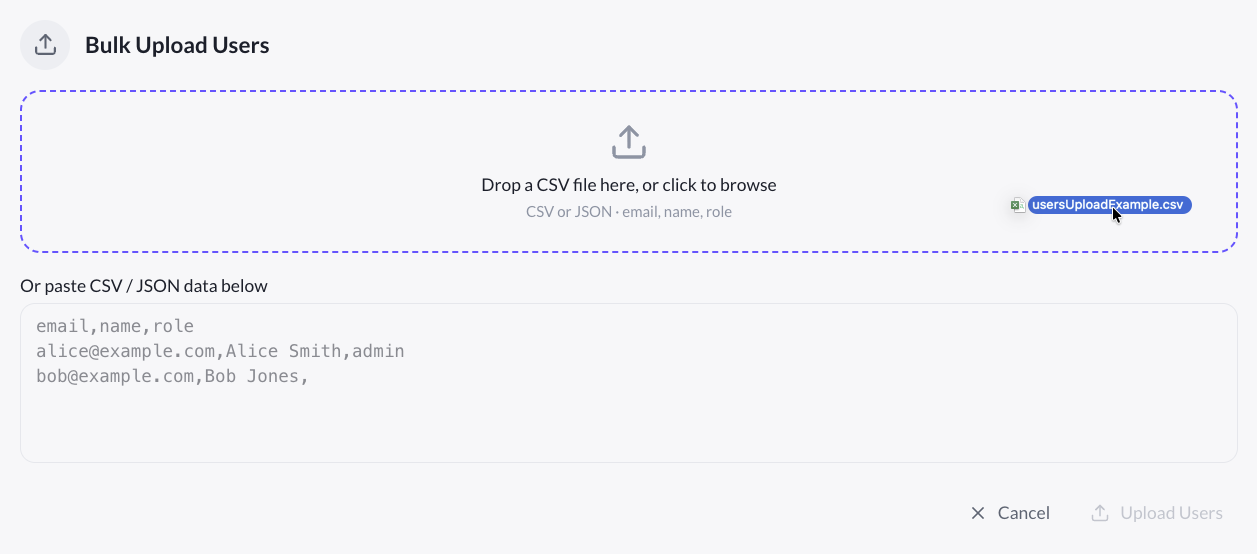
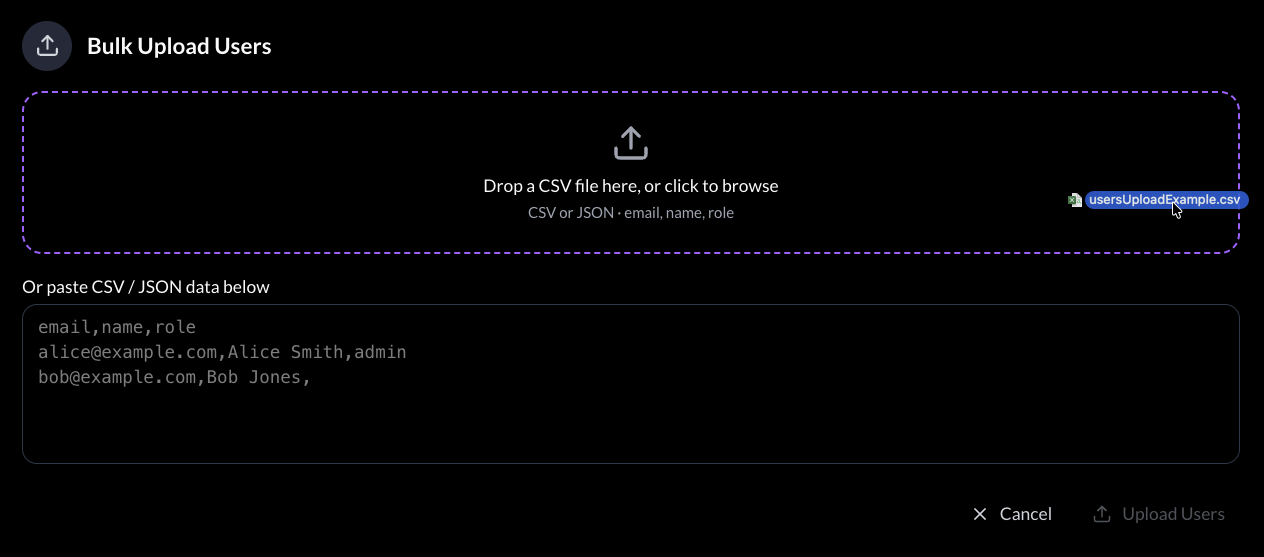
- Click Upload Users in the admin dashboard
- Select a CSV or JSON file containing the user list
- The system processes the file and creates all accounts
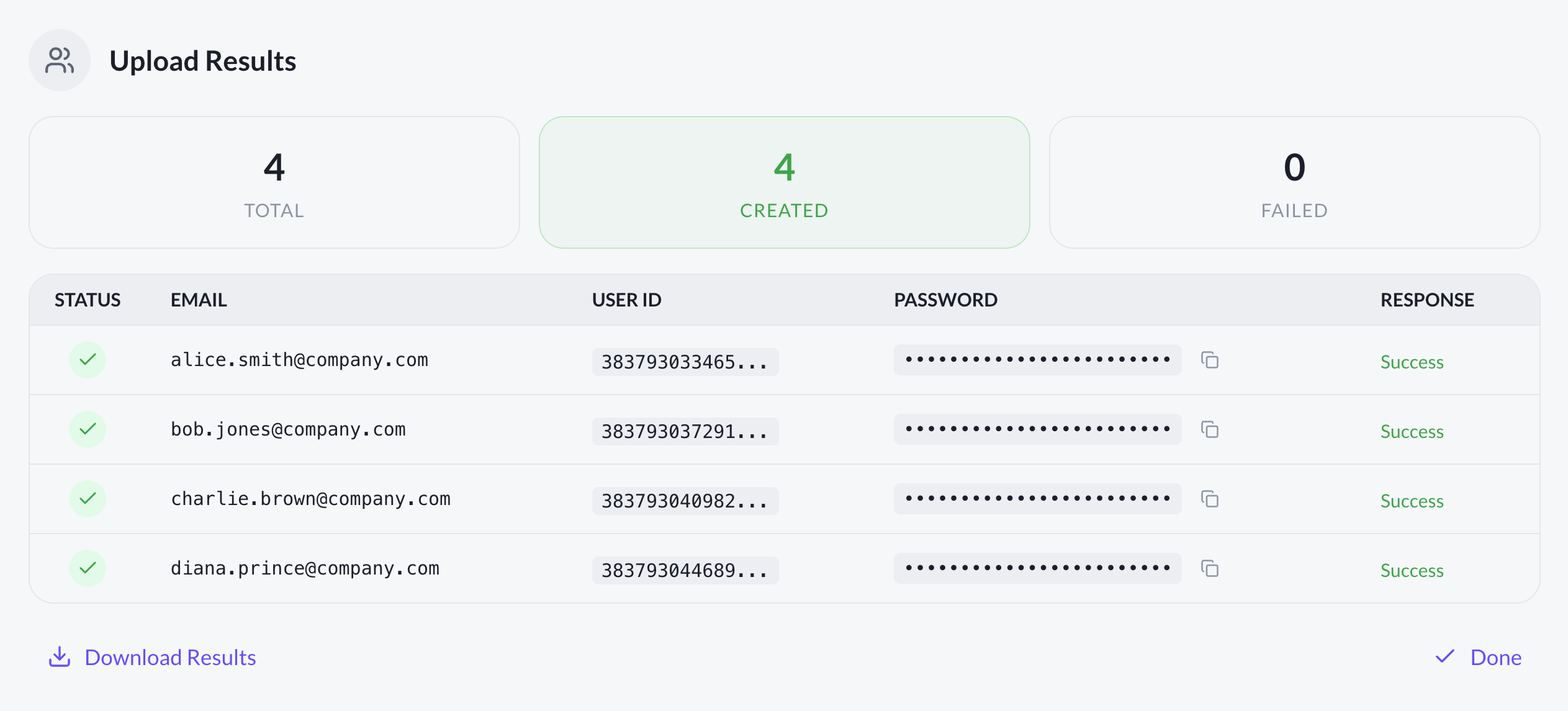
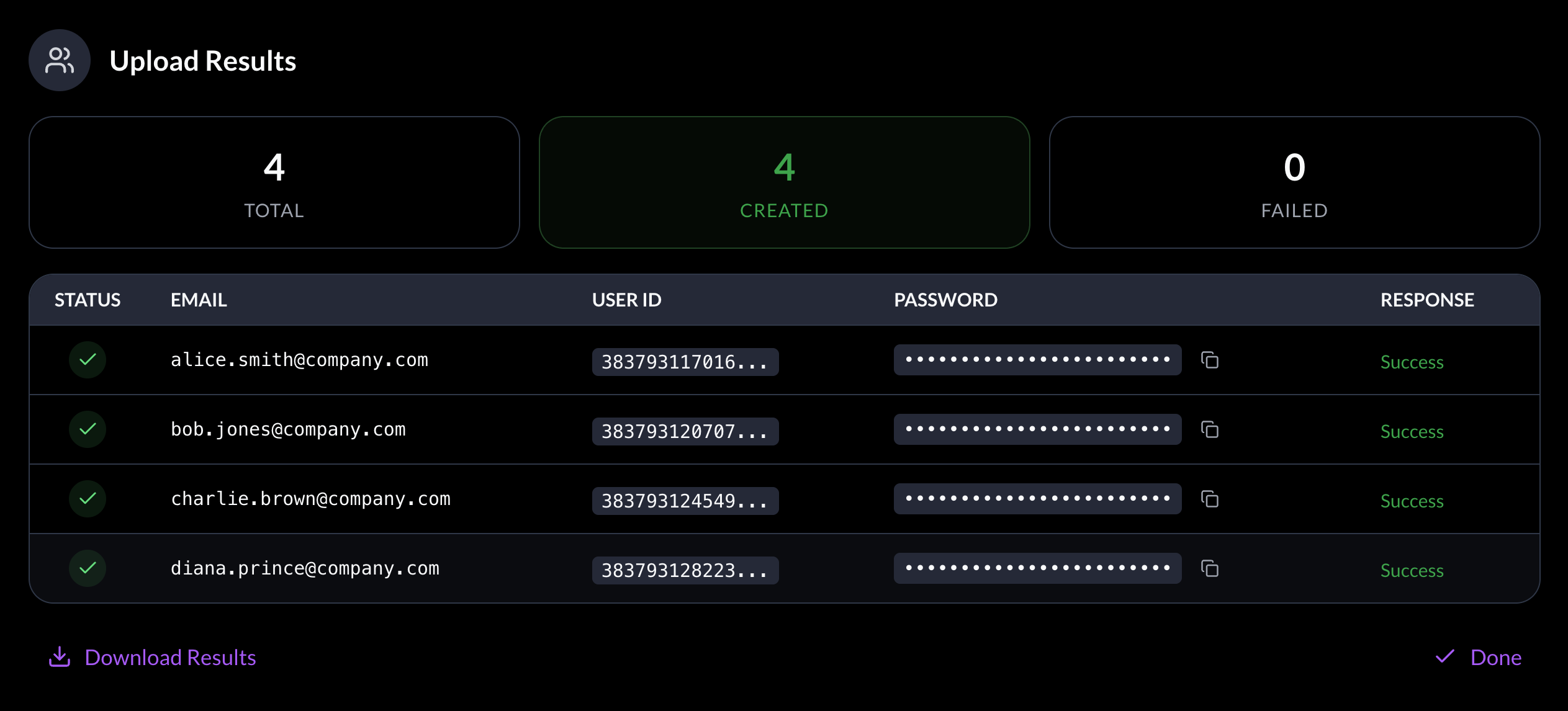
- A confirmation list appears showing all added users with their generated passwords
CSV format example:
name,email,role
Alice Martin,alice@company.com,access
Bob Dupont,bob@company.com,access
Charlie Klein,charlie@company.com,access
JSON format example:
[
  {"name": "Alice Martin", "email": "alice@company.com", "role": "access"},
  {"name": "Bob Dupont", "email": "bob@company.com", "role": "access"},
  {"name": "Charlie Klein", "email": "charlie@company.com", "role": "access"}
]
Ensure the file format is correct before uploading. Invalid entries will be skipped and reported in the confirmation list.
Download User Credentials
After creating users (individually or in bulk), you can download the complete list of added users with their passwords:
- After the creation confirmation appears, click Download as CSV
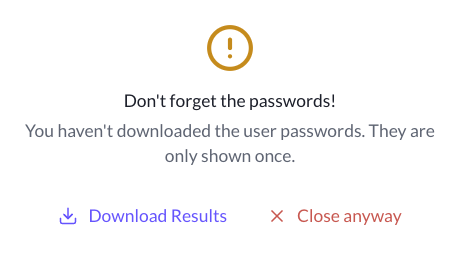
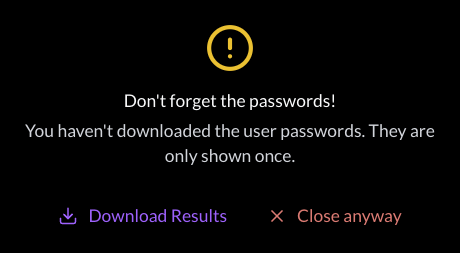
- Confirm the password prompt to proceed with the download
- Save the file securely
- Use it to communicate credentials to your users
The CSV file contains sensitive password information. Store it securely and share passwords with users through private channels only. Delete the file once passwords have been communicated.
Users added by an administrator can log in using either:
- The email and password workflow (with the credentials provided)
- Single Sign-On (SSO) directly, if your organization has SSO configured