User List
The admin dashboard gives you a complete view of all users in your organization.
Dashboard Overview
The admin dashboard displays all users in your organization in a table with the following columns:
| Column | Description |
|---|---|
| Name | The user's display name |
| The user's email address | |
| Role | user or admin |
| Access | Toggle to assign or remove the user role, which controls Chat App access |
| Actions | Menu with options to edit, activate/deactivate, or delete |
At the top of the page, the admin sees summary counts for total users, admins, and pending accounts.
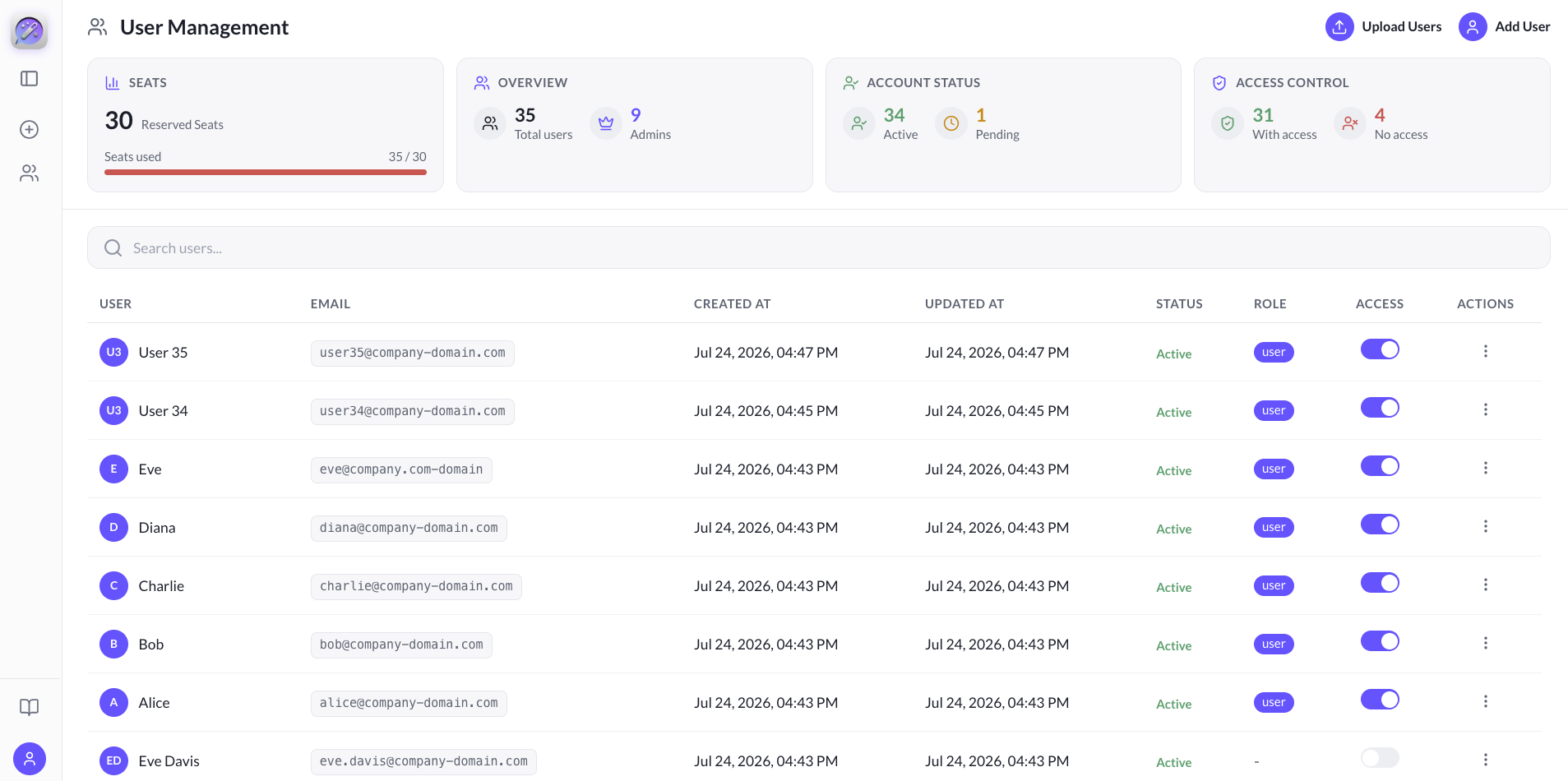
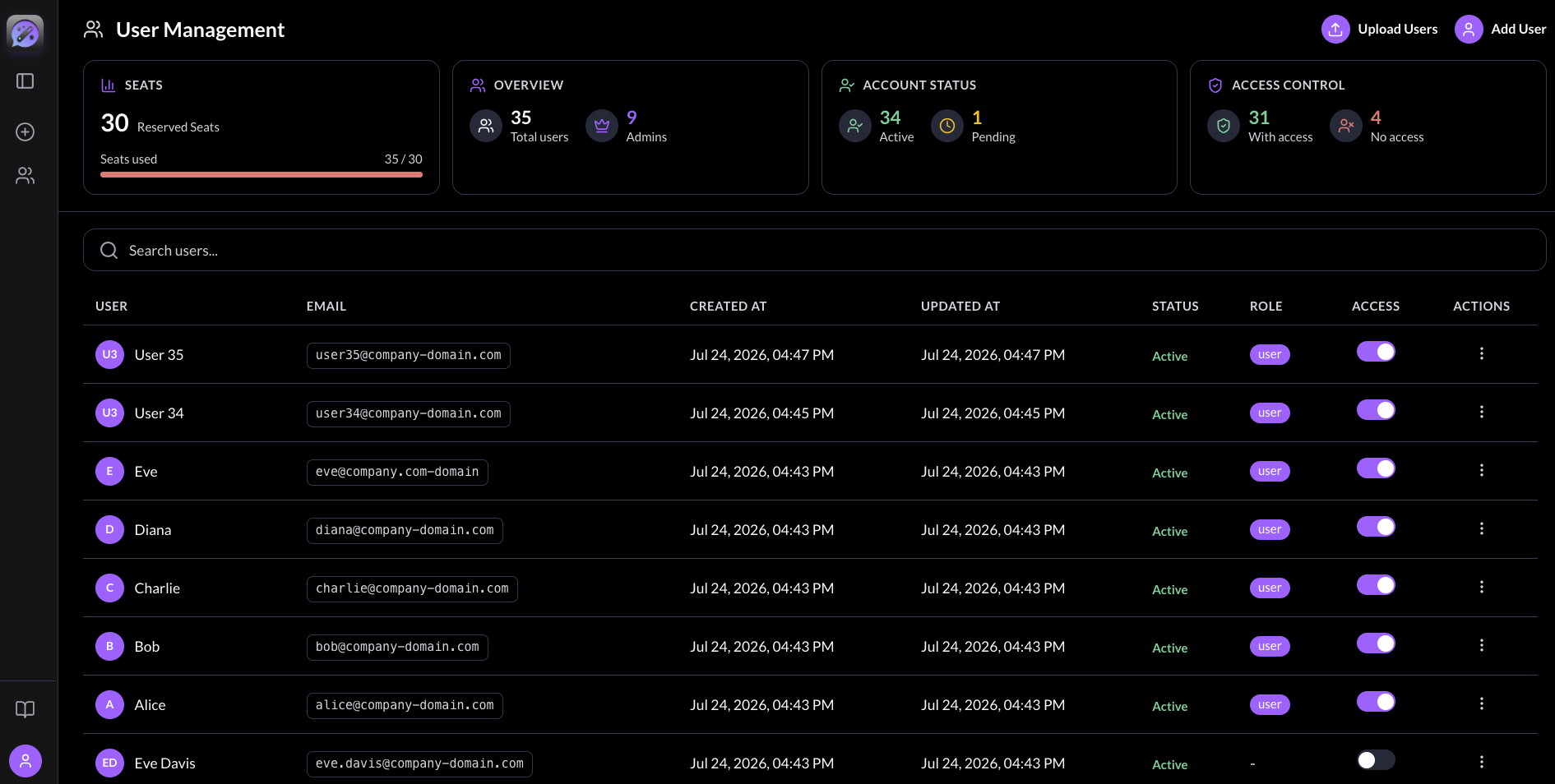
Search Users
Use the search bar at the top to filter users by name or email in real time. When no results match, the dashboard shows a friendly empty state with "No users found."
User Status Badges
Each user row displays helpful information:
| Badge | Meaning |
|---|---|
| Status | Email verification status — Active, Pending, or Inactive (active by default) |
| Role | Admin, User |
How Users Appear in the List
| How User Joined | Initial State | Admin Action Needed |
|---|---|---|
| Admin-created | ✅ user role assigned and email status active automatically | None — they can chat immediately |
| SSO self-registration | ⚠️ Email status active by default, but no role assigned | Admin must toggle Access to assign the user role and grant Chat App access |