Manage Access
Control which users can access the Chat App by assigning or removing the user role.
Granting Chat App Access
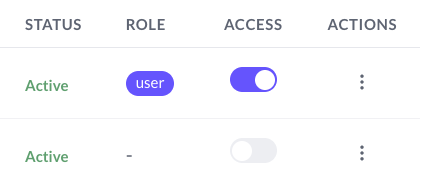
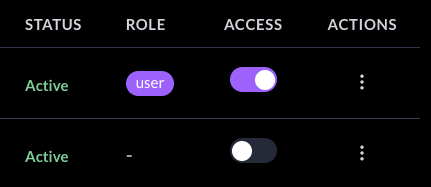
Access to the Chat App is controlled by the Access column toggle. Turning the toggle on assigns the user role to that person, which is what actually grants them access to the Chat App.
To grant or revoke access:
- Find the user in the admin dashboard
- Click the Access toggle in their row
- The toggle turns on (assigns the
userrole) or off (removes the role) - Save your changes
When you change a user's access, the change does not take effect immediately for users who are already logged in. The user must log out and log back in for the new role to be applied.
Common Scenarios
A new employee joins via SSO:
- The user signs in with their work email
- Their account appears in the user list with active email status, but the Access toggle is off (no role assigned)
- The admin clicks the Access toggle to turn it on (assigns the
userrole) - The admin asks them to log out and log back in
- They can now use the Chat App
A departing employee leaves:
- Find the user in the dashboard
- Turn their Access toggle off — the
userrole is removed - Optionally, delete their user account after confirming company policy allows it
To block a departing employee immediately, the admin must delete their account. Removing the user role by turning off the Access toggle only takes effect after the user's next login — they can continue using the Chat App until they log out.